View account access keys
You can view and copy your account access keys with the Azure portal, PowerShell, or Azure CLI. The Azure portal also provides a connection string for your storage account that you can copy.
To view and copy your storage account access keys or connection string from the Azure portal:
In the Azure portal, go to your storage account.
Under Security + networking, select Access keys. Your account access keys appear, as well as the complete connection string for each key.
Select Show keys to show your access keys and connection strings and to enable buttons to copy the values.
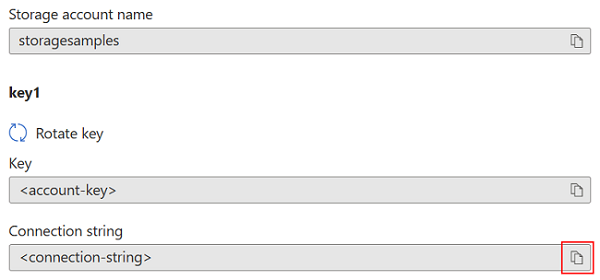
Under key1, find the Key value. Select the Copy button to copy the account key.
Alternately, you can copy the entire connection string. Under key1, find the Connection string value. Select the Copy button to copy the connection string.
You can use either of the two keys to access Azure Storage, but in general it's a good practice to use the first key, and reserve the use of the second key for when you are rotating keys.
To view or read an account's access keys, the user must either be a Service Administrator, or must be assigned an Azure role that includes Microsoft.Storage/storageAccounts/listkeys/action. Some Azure built-in roles that include this action are the Owner, Contributor, and Storage Account Key Operator Service Roles.
Comments
Post a Comment